Print your cards at actual size on letter paper
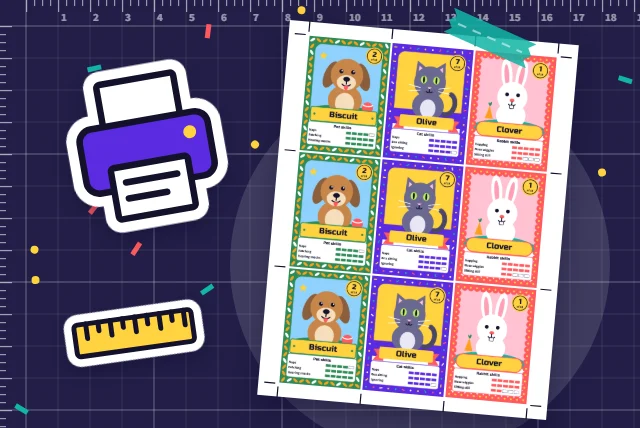
Your first sheet slides out of the printer, you lay a ruler across one card, and it reads 2 3/8 inches where it should read 2 1/2. Nothing looks broken. The picture is sharp and the colors are fine. The page was simply shrunk a little on its way to the paper, and now the cards rattle inside their sleeves and look slightly off next to each other.
The good news is that this usually comes from a setting in the print window, not from your design. A handful of choices decide the size. Set them, check one sheet, and the rest of the set will match.
Start from the button inside the tool
In Card Workshop, decide what goes on the paper first. You can make sheets with all the cards in your collection, or one sheet filled with the card you have open. Choose fronts only, or fronts and backs, and turn crop marks and thin cut lines on or off. Then press Print or save as PDF.
Your browser now opens its own print window, and that window is where the final size is settled. Chrome’s help pages describe the step in plain terms: pick a destination, change the print settings you need, then click Print. Other browsers follow the same idea with slightly different labels. Start from the button in the tool each time, so that the thing you send to paper is the prepared card sheet.
Phones and tablets often show fewer choices than a computer. If you cannot find any way to set the scale, save the sheet as a PDF and print that file from a computer.
The settings that decide the size
Read the whole print window once, from top to bottom, before you press anything. These are the lines that matter for size.
| Setting | Choose | What can happen otherwise |
|---|---|---|
| Paper size | Letter, 8.5 × 11 in | The sheet is shifted, clipped or rescaled |
| Scale | 100% or “actual size” | Every card comes out smaller or larger |
| Margins | None | The full-page sheet is squeezed, clipped or pushed onto a second page |
| Headers and footers | Off | Dates and page addresses print around your cards |
| Pages per sheet | 1 | Several pages are squeezed onto one, giving tiny cards |
Letter paper measures 8.50 × 11.00 inches. A4, which some computers and printers pick on their own, is about 8.27 × 11.69 inches: a little narrower and noticeably taller. The two look alike in a small preview, so read the words and not just the picture.
Some of these choices hide under a heading such as “More settings” or “Page setup”. There may also be a second window that belongs to the printer itself. If that one offers its own scaling, borderless printing or “fit to paper”, turn it off. A web page can suggest a page size and margins to the browser, but your own print settings still deserve a look every time.
The note under the button in Card Workshop asks for these same choices: letter, 100%, no margins, and no headers or footers. Margins matter because each sheet is already laid out as a whole letter page, with its own white border around the cards. Any extra margin added by the browser has to come out of the space your cards need.
What “fit to page” does to a card
Scaling is plain multiplication. At 96%, every measurement is multiplied by 0.96, so a Classic card of 2.5 × 3.5 inches comes out 2.4 × 3.36 inches. A tenth of an inch does not sound like much until you try to slide a new card in beside older ones.
| Print scale | Classic card becomes | Large card becomes |
|---|---|---|
| 100% | 2.50 × 3.50 in | 3.50 × 5.00 in |
| 97% | 2.43 × 3.40 in | 3.40 × 4.85 in |
| 94% | 2.35 × 3.29 in | 3.29 × 4.70 in |
| 90% | 2.25 × 3.15 in | 3.15 × 4.50 in |
You can also work backward from a bad print. Divide the width you measured by the width you wanted: 2.375 ÷ 2.5 = 0.95, so that sheet printed at 95%. Resist the urge to type 105% to make up the difference. Find the option that shrank the page and switch it off. A correction number stacked on top of a hidden setting only works until one of the two changes.
Prove it with one sheet and a ruler
Before you load good cardstock, print a single sheet on plain paper with exactly the settings you plan to use. Measure one card from cut line to cut line, first across and then down. Check both directions, because a printer can be spot on one way and a hair off the other.
| Card size | Width × height | Cards on a letter sheet |
|---|---|---|
| Classic | 2.5 × 3.5 in | 9 |
| Mini | 2 × 3 in | 12 |
| Square | 3 × 3 in | 6 |
| Large | 3.5 × 5 in | 4 |
A difference no thicker than a pencil line is normal at home. If a card is off by 1/16 inch or more, go back to the settings.
Look at the edges of the paper too. Three rows of Classic cards add up to 10.5 inches on an 11-inch sheet, which leaves only half an inch in total for the top and bottom borders. Most home printers cannot print right up to the edge. If a guide near the border is missing, turn on thin cut lines so each card carries its own outline, and print the test again.
Run through this short list on every print day:
- The window says Letter, and letter paper is in the tray.
- Scale reads 100% or actual size.
- Margins are set to none, and headers and footers are switched off.
- One page prints on each sheet.
- The preview shows every card complete.
- One printed card has been measured with a ruler.
Once the ruler agrees, you are ready for the next steps: lining up the fronts and backs if your cards are two-sided, and cutting them straight.
Common mistakes
- Leaving the scale on “fit to page” or “shrink to fit”.
- Choose 100% or actual size, then look at the preview again before printing.
- Judging the size from the screen or the preview.
- Screens differ. Only a ruler laid on a printed sheet tells you the real size.
- Typing a larger percentage to rescue a small print.
- Remove the option that shrank the page instead of adding a second correction.
- Printing the whole collection before testing anything.
- Print one sheet on plain paper, measure it, and only then load the good paper.
Questions and answers
Why are my cards still small at 100%?
Look for a second scaling option in the printer’s own window, such as borderless or fit to paper, and check that the chosen paper size matches the sheets in the tray.
Can I print on a paper size other than letter?
The sheets are made for letter paper. On another size the layout may be shifted or rescaled, so letter paper is the reliable choice.
Do headers and footers matter if the cards look fine?
They add text such as the date or page address near the edges, which can crowd the cards or print over a cutting guide. Switching them off keeps the sheet clean.
What if the width is right but the height is a little off?
A tiny difference can come from the way paper moves through the printer. If it reaches about 1/16 inch, check the paper size setting, reload the tray squarely and test again.
Sources
- Google Chrome Help: Print from Chrome (checked November 27, 2026)
- Prepressure: The letter paper size (checked November 27, 2026)
- MDN Web Docs: @page CSS at-rule (checked November 27, 2026)
Found a mistake? See how corrections work.